Kernel for Exchange Server Recovery
 (4.9/5) 539 Reviews
Recover mailboxes from corrupt or dismounted Exchange databases without requiring transactional log files. The Kernel for Exchange Server allows precise granular-level recovery of EDB mailboxes (primary & archived) and public folders. It restores the data to multiple destinations while retaining the original folder structure and message metadata.
Download the trial version and recover up to 25 items per folder for free.- Restore corrupt Exchange databases and save data to PST.
- Recover and save mailboxes to Exchange (On-Premises or Online).
- Recover Emails, Calendar, Contacts, Journals, Tasks, and Notes.
- Save public folders to new Outlook PST files.
- Advanced Search feature for selective email message recovery.
- Recover deleted mailboxes and items from the Exchange database.
- Option to save individual mailboxes to a separate PST file.
When Do You Need Exchange Database Recovery?
Understand the common Exchange issues and situations where database recovery becomes necessary to restore mailbox access and communication.

Dirty Shutdown Error
This error occurs when the Exchange database is not shut down properly, leaving it in an inconsistent state.
Unable to Mount EDB File
It's a critical error preventing the database from attaching to the server and making data inaccessible.
JET ESE Errors
These are low-level database errors that signal internal problems, preventing normal database functioning.
Missing or Corrupt Transaction Logs
If transaction logs are damaged, the database cannot be brought to a clean or consistent state.
Exchange Server is unavailable
This error can arise if your database file is damaged or in an inconsistent state for any reason.
Can't Start Information Store Service
An issue within the database can lead to this service failure, preventing access to mailboxes.
Cyclic Redundancy Check
A CRC error indicates that the Exchange database file has been corrupted, making the data in it inaccessible.
Low Space Issue
Insufficient disk space for the database and its log files can cause the Exchange database to dismount and become unavailable.Trusted by Microsoft MVPs




Key Features of Exchange Recovery Software
Explore the main features of the Exchange recovery software that help with accurate EDB file recovery.

Recover Exchange mailboxes
Our Exchange Server recovery tool helps admins recover data from corrupt, dismounted, or offline Exchange databases. After Exchange database recovery, users can save mailboxes and public folders to Microsoft 365, Exchange Server, Hosted Exchange, or a PST file.

Deleted Exchange mailbox recovery
Exchange Server recovery software allows users to restore deleted emails (within the retention period). To easily differentiate recovered deleted data, the tool shows the deleted emails in red color. The user can save deleted items in PST, MSG, EML, HTML, PDF, etc. formats.

Save recovered mailboxes in a PST file
Use the Exchange Recovery tool to Export offline EDB mailboxes to PST. Restore Exchange mailboxes to a new or existing PST file without disturbing the existing mailbox hierarchy. This feature helps with easy mailbox archiving and supports specific data compliance needs.

Recover and save public folders
The Exchange Recovery tool offers recovery of public folder data from offline databases or live mailboxes. It also restores lost or deleted public folder items (from both Office 365 and Exchange). Users can save recovered data to a supported destination in the tool.

Auto-Search EDB files
Search EDB files from your system’s hard disk or network drive using our Exchange data recovery tool. Easily find and add multiple offline EDB files in the tool for bulk database recovery. The tool processes each EDB file in complete isolation and recovers data with all files & folders intact.

Exchange BKF recovery
Kernel for Exchange Server Recovery tool includes a backup extractor feature for direct data recovery from Exchange BKF files. Recover Exchange database files (Priv.edb, Pub.edb, Stm.edb, mailboxdatabase.edb) and saves your time as compared to traditional, lengthy restoration processes.

Detailed reports & operation logs history
Generate detailed reports regarding the recovery process with details like source, destination, item recovered, folder count, failed items, etc. The Exchange Recovery software automatically creates logs for every mailbox restoration. Users can select a specific date and time to find and access logs.

Advanced search within mailboxes
Features a Search function to perform deep and precise searches within the mailboxes. Quickly locate messages with specific words/phrases and search within attachments by criteria like body, type, size, date range, and more. Save custom searches for quicker access without creating them repeatedly.

Preview recovered Exchange data
The Exchange recovery tool features a preview pane to access information stored within the selected folder, email, or message from source & destination lists. Before you save Exchange data, the preview feature allows you to read the entire message, including attachments, contacts, etc.

Dual recovery modes
Error-free Exchange mailbox recovery with dual scanning modes, optimized for different corruption levels. For minor corruption, use Standard Scan, and for severe corruption, go with the Deep Scan mode. The tool also allows you to recover hidden system files.

Support recovery of large EDB files
The Exchange database recovery tool has no file size capping. You can add and recover EDB files of any size. Moreover, after recovery, the mailboxes and public folders can be saved into either a single PST file, or you can make a separate PST file for each mailbox.

Selective Exchange recovery
Use Exchange Server recovery software to select the EDB file and recover complete or specific data from all the user mailboxes stored in it. Make use of several data filters to recover specific mailbox items as per your needs. Recover entire data in one go or perform recovery according to date or item type.
How does Kernel for Exchange Server work?
Check out the 4-step process to recover data using our Exchange database recovery software.
Select Exchange data source
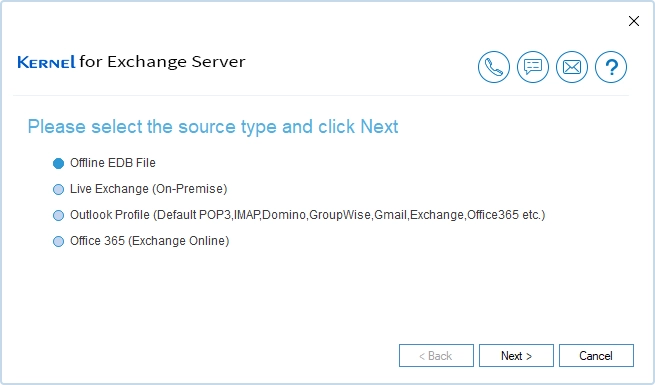
Launch the Kernel for Exchange Server tool and add the source mailboxes using one of these options:
- Offline EDB file: Browse and add the offline Exchange database file containing user mailboxes.
- Live Exchange (on-premises): Connect and recover mailboxes from Live Exchange Server.
- Outlook Profile: Recover data from Outlook profiles (Default POP3, IMAP, Domino, Groupwise, Gmail, Exchange, Office 365, etc.)
- Office 365: Connect the Exchange Server recovery tool to recover and restore data from Office 365 (Exchange Online).
Preview mailbox components
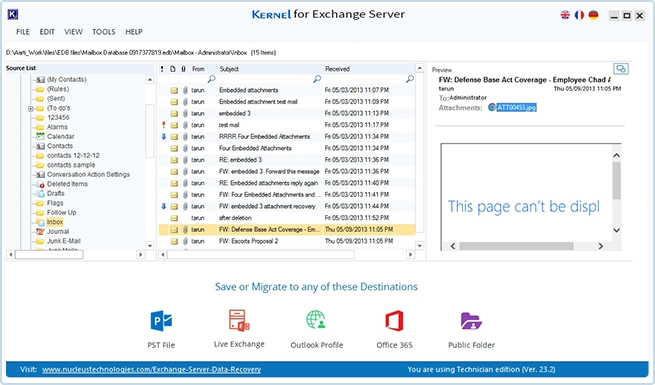
Now, as the selected source is successfully added to the tool, you can preview the mailbox data using the left pane.
- Preview single mailbox items: Allows easy preview of mailbox folders in a tree-like structure, and you can preview each email message side-by-side.
- Search emails:Use the search option to quickly find and view specific emails.
- Preview embedded attachments: Preview all the attachments embedded in the emails.
- View deleted emails: Displays all the deleted emails highlighted in red.
Add a destination to save recovered data
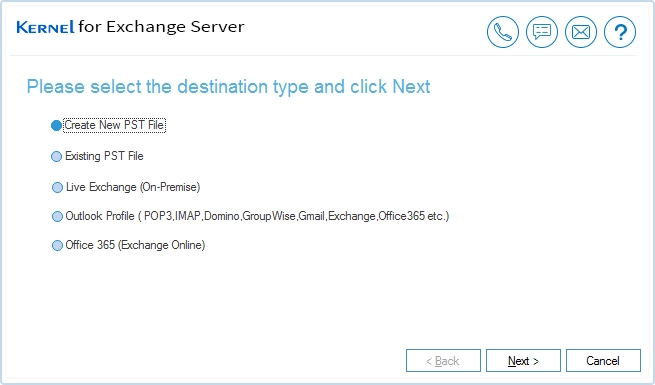
After Exchange mailbox recovery, the software allows restoring the data in four different destinations.
- Outlook PST File: Users can choose to save data in a new or existing PST file.
- Outlook Profile: Select the Outlook profile to export the mailbox directly.
- Live Exchange Restore data to on-premises Live Exchange.
- Office 365: Restore data to Office 365 private and archive mailboxes.
- Public Folder: Restore data to Exchange Online public folders.
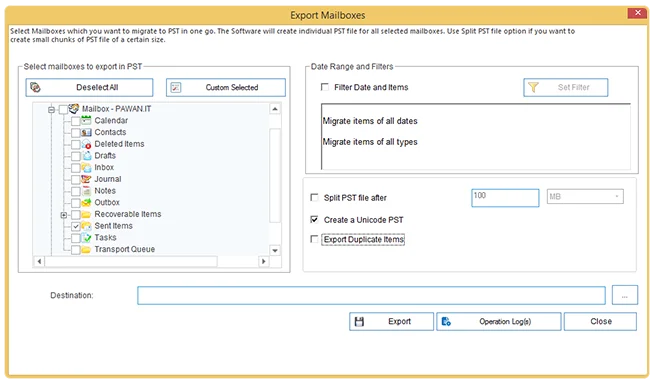
Select filters and save data
Apply the necessary filters and specify other saving options. Then, browse the output location and begin the saving process.
- Folder selection: Select or unselect the folders to save from the mailbox.
- Filter: Use the Date Range and Item Type filter for selective data restoration.
- Other options: Split PST file, retain duplicate data, and choose to create a UNICODE output PST file.
- Destination: Click on the three-dot icon and specify the location where you want to save the PST file, and click Export.
Video Guide for Exchange Database Recovery
Watch the Step-by-Step video tutorial to understand the complete Exchange database recovery process in simple steps.
What Data Items You Can Recover
The Exchange Server Recovery tool allows you to restore all supported data items from the Exchange mailbox, with original metadata and preserved mailbox structure.
- User mailbox
- Archive mailbox
- Public folders
- Shared mailbox
- Distribution mailbox
- Subject
- To
- CC
- BCC
- Date
- Time
- Appointments
- Meetings
- Subject
- Reminders
- Events
- Locations
Basic Details:
- First name
- Last name
- Title, Company
- Alias
- Mail contact information
Business details:
- Business address
- Business number
- Business Fax
Attachment Types:
- Documents (.doc, .docx)
- Text files (.txt)
- PDF files (.pdf)
- Spreadsheet (.xls, .xlsx, .ods, etc.)
- PowerPoint presentations (.ppt)
- Images (.jpg, .jpeg, .png, .gif, etc.)
- Signatures
- Business Cards
- Task with attachments, Start Date
- Due Date
- Subject
- Status
- Priority
- Owner
- Reminders
- Recurrence (Daily, Weekly, Monthly, Yearly)
- Categories, etc.
Tasks:
Notes:
- Subject
- Created time
- Categories
Exchange Recovery Tool: Trial vs Full Version
Compare the features of the Kernel for Exchange Server trial and full versions and choose the best fit for your business requirements.
| Software Features | Trial Version |
Full Version |
|---|---|---|
| Fixes all EDB file corruptions | ||
| Preview mailboxes in the original hierarchy | ||
| Recover deleted mailbox & attachments | ||
| Two scanning modes (Standard & Deep) | ||
| Supports all Microsoft Exchange versions | ||
| Individual message recovery | ||
| Save to multiple output types | ||
| Saving limit in PST, Live Exchange & Office 365 | 25 items per folder | Unlimited |
| Free Download | Upgrade $299 |
Common User Queries
Find out answers to some common questions that users have related to Exchange database recovery.
What is the Kernel for Exchange Server Recovery tool?
It's an admin-friendly Exchange database (EDB) recovery tool that is developed to help organizations recover & restore inaccessible data from corrupt, orphaned, and inconsistent databases. Once recovered, administrators can save the data locally or transfer it directly to the Exchange Server.
What causes Exchange database corruption?
Corruption in the EDB file can happen due to several reasons, such as:
- Abrupt system shutdown
- Storage and disk failure
- Transaction log mismatch
- Antivirus is blocking read/write operations on the EDB file
Is there a demo version to test the tool before buying?
Yes. You can download the trial version to test the software. However, the free Exchange Recovery tool can only restore 25 items per folder.
I have multiple mailboxes in one .edb file. Can I create a separate PST for each mailbox?
Yes, you can. Our Exchange Mailbox Recovery software supports exporting individual user mailboxes to separate PST files. Moreover, you can manage the output PST file size using the split PST file feature.
Does the Exchange Mailbox Recovery tool recover data from Exchange public folders and save it to Office 365 public folders?
Yes, it allows exporting data from Exchange public folders to Office 365 public folders.
Can I restore mailboxes directly to Exchange?
Yes, you can restore Exchange mailbox(es) directly to Exchange. The Exchange Recovery tool allows the saving of all or selective mailboxes from the offline database (all versions supported) file to the Live Exchange Server in a single attempt.
Is eseutil safe for severe corruption?
No. To fix severe block-level corruption with eseutil, the /p switch is used. This switch will purge all the corrupt pages from the EDB file. You should only use the eseutil tool for minor database issues that can be fixed by replaying the log files.
Does the Exchange Recovery tool have an option to avoid duplicate items?
Yes. The tool automatically skips duplicate items during recovery. However, if you want to retain the duplicate items, there is a dedicated option for it.
In Exchange, there are UNICODE characters, too. Does the software also recover them?
Yes. The Exchange Recovery tool supports recovery of Unicode characters. After recovery, you can save EDB to different destinations according to your requirement, including Unicode PST files.
Is it possible to recover calendars or contacts from an offline EDB file?
Yes, you can use our Exchange mailbox recovery solution to recover contacts and calendars from an offline Exchange database file.
Does this software recover an Exchange user mailbox from an inconsistent database?
Kernel for Exchange Server helps to recover mailboxes from an inactive or inconsistent Exchange Server database. The complete process takes only a few steps. Download the tool, add the source database file, and restore the mailboxes.
How to recover an Exchange database without a backup?
For recovery without a backup file, you must use the eseutil utility. First, try the soft recovery (eseutil /r) and if that does not work, try the hard recovery (eseutil /p). But a hard recovery will cause permanent data loss. The safest option is to use a specialized Exchange mailbox recovery tool.
Case study of Exchange recovery tool
Browse through our case studies to learn about real-world implementations of our Kernel for Exchange Server recovery tool.

This case study explains how our team assisted Capital Network Solutions in upgrading the Exchange Server 2010 Replication Service, which was earlier causing complications. The Exchange Server software supports migrating data to an upgraded Exchange version and allows saving data to different file formats. Read full case study

In this case study, we outlined how our client, KPG, restored and mounted the Exchange Server database with the Kernel for Exchange Server software. Our team analyzed the situation, found the root cause, and offered a robust solution to fix the database inconsistency. Read full case study

Delve into our case study featuring Main Advantage, one of our clients who encountered complexities mounting the database to the Exchange Server due to insufficient disk space and data corruption. Our team recommended the Kernel Exchange Suite for straightforward database recovery and provided round-the-clock assistance. Read full case study
Kernel for Exchange Server Prerequisites & recommendations
 About Software
Version: 25.0
Release Date: Oct 2025
License Type: Corporate & Technician
 Version Support
MS Exchange Server: 2019, 2016, 2013, 2010, 2007, 2003, 2000, 5.5 and 5.0
MS Outlook: Office 365, 2021, 2019, 2016, 2013, 2010, 2007, 2003, 2002, 2000, 98 and 97
Virtual Environments: - VMware® Server 1.0x, 2.x, VMware® Workstation v6.0x for Windows, Microsoft® Virtual PC 2007, VMware® ESX 4.0, ESXi
System Requirements
Hard Disk: 2 GB of disk space
Memory: 4 GB Minimum
Processor: Intel® Pentium Processor compatible (x86, x64) or equivalent
Operating System: Windows 11, 10, 8.1, and older versions.
Windows Server 2022, 2019, 2016, 2012, 2008 R2, 2008, 2003 R2, 2003
 Installation Guide
 User Manual
What customers say about Kernel for Exchange Server
 (4.9/5) 539 Reviews
Kernel for Exchange Server Recovery easyily scan and recovers data from my public and private EDB files. For me, the best feature was the option to directly restore mailboxes to Office 365 user mailboxes, as it saved me a lot of manual work.